
Smart Frame
Hang your Lenovo Smart Frame back on the wall.
Photos from your own NAS, 4,774 public-domain paintings and pictures sent from your phone. No Lenovo account, and no server of ours.
Unofficial open-source app for the Lenovo Smart Frame.

Your photos, from your own NAS
Pick folders from Synology Photos, in the shared or personal space, and each one becomes a channel. Play them shuffled or in the order they were taken.
Photos are cached on the frame, so the slideshow keeps going while the NAS sleeps. Two portrait photos share the screen side by side.
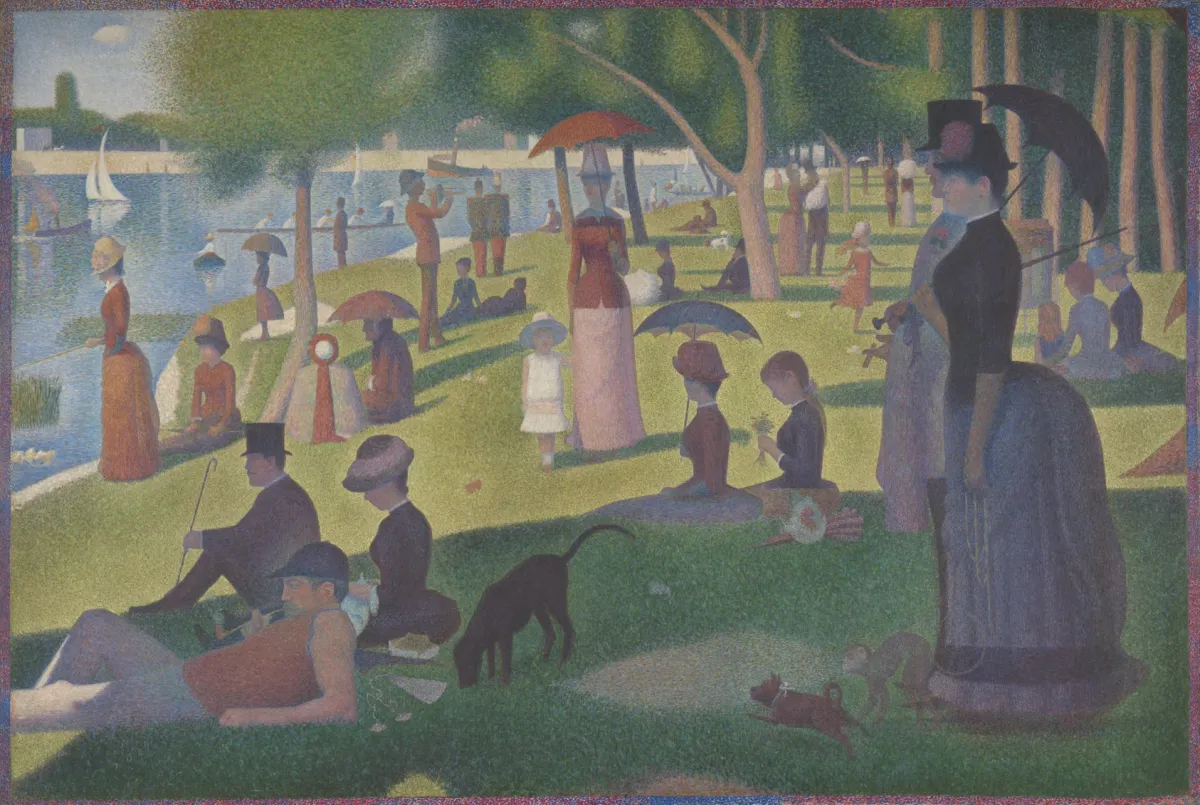
A Sunday on La Grande Jatte — 1884, 1884–86
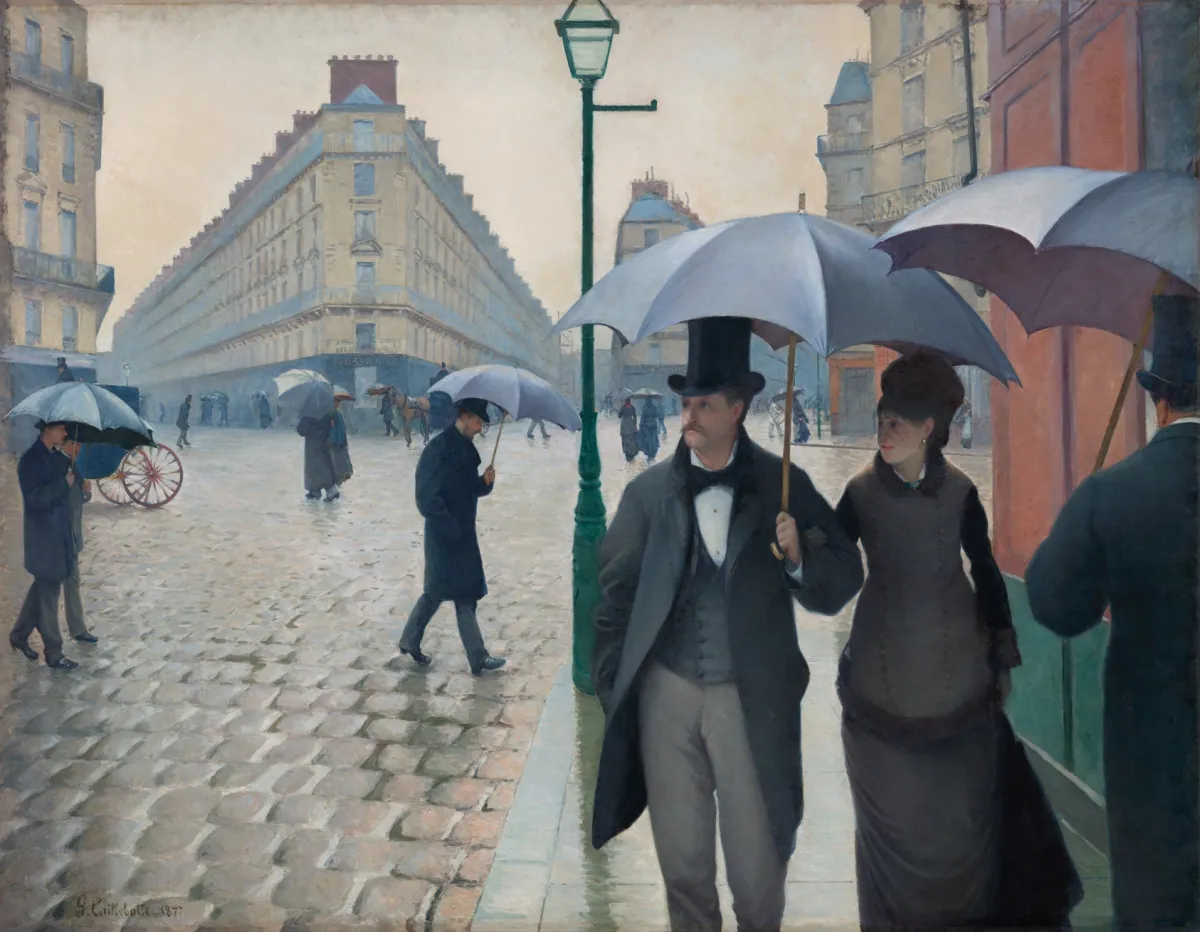
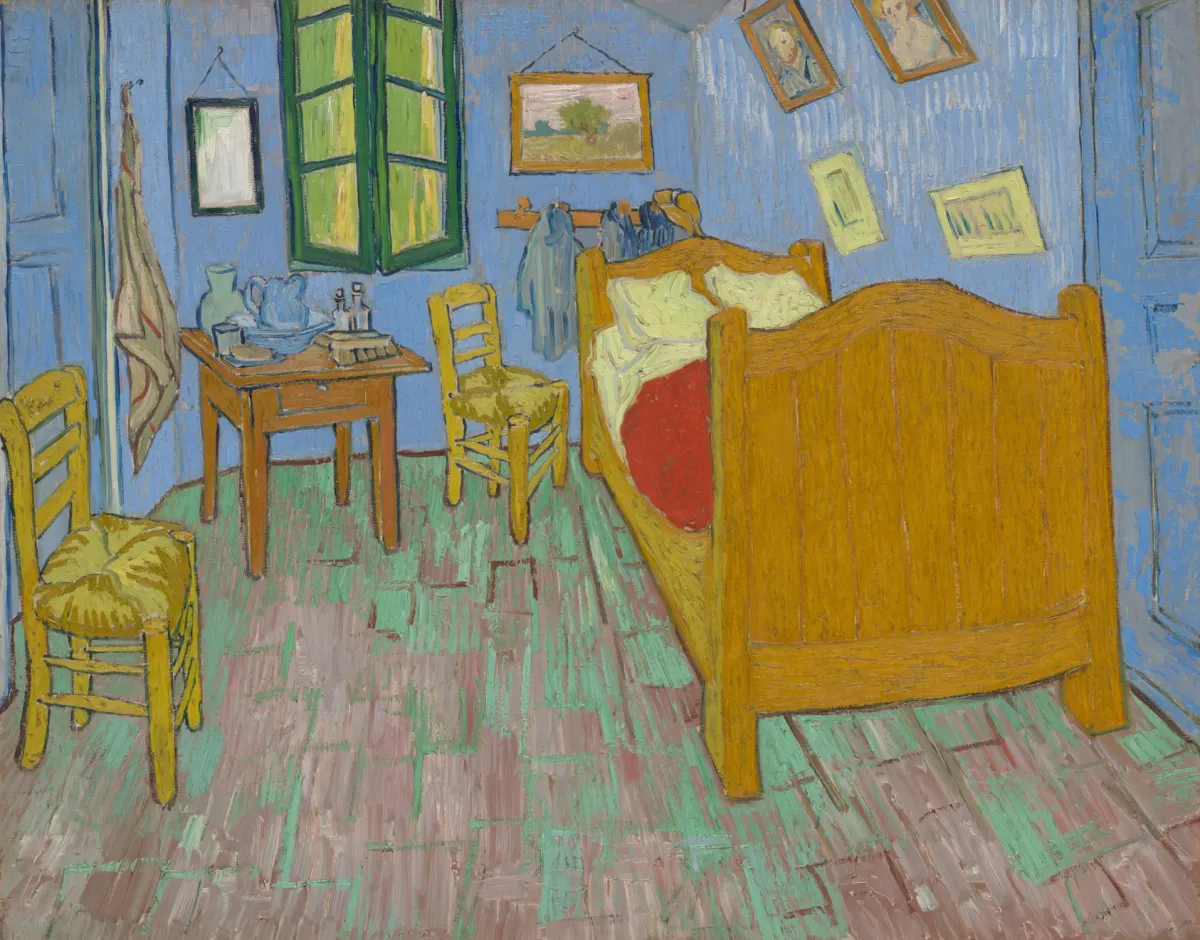
4,774 paintings, free to hang
Public-domain paintings from the Art Institute of Chicago and the National Gallery of Art. In the app, search by artist or movement, like “Monet” or “Impressionism”, or pick a curated set, and hang the whole set.
A side button flips between your photos and the paintings, with the title and artist along the bottom. A frame with no photo service starts with a set of masterpieces.
Set up and send from your phone
The iPhone and Android apps set the frame’s Wi-Fi over Bluetooth, then handle every setting over your home network.
Pick photos on your phone and send them. They gather in one folder on the frame, which holds about 4,000 photos.
Everything a frame should do
-
Schedule & auto-brightness
Turns the screen on and off on your schedule, and matches the room with its light sensor.
-
Wave or press
Wave a hand or press a side button for the next or previous photo, or the next channel.
-
Settings by QR
Scan the QR code on the frame to open its settings in your phone’s browser, protected by an access token.
-
No account needed
No Lenovo account and no server of ours. The frame talks only to your network, your NAS and the museums’ image servers.
-
Signed updates only
An update installs only when it is signed with the same key as the app you first installed.
-
Undo anytime
The installer’s Restore puts the original Lenovo frame app back.
What you’ll need
- Lenovo Smart Frame
- A computer with Chrome or EdgeTested on Mac. Windows support is still being checked.
- A USB cable
- A Bluetooth mouse (or keyboard), onceThe frame has no touchscreen, so you’ll use it to turn on USB debugging during setup.
Install in three steps
- Open the web installer in Chrome or Edge, connect the frame by USB and press Install.
- Set the frame’s Wi-Fi over Bluetooth from the phone app.
- Choose what to show: your NAS, paintings or photos from your phone.
The installer opens with the public release.
Hi there.
The Lenovo Smart Frame is a lovely piece of hardware: a 21.5-inch screen in a frame that hangs on the wall like a painting. But its app leaned on Lenovo’s cloud and on full access to your Google Photos library.
In March 2025 Google removed that access for every app, and the frame lost the main thing it was for. Many of them ended up in a drawer.
So I wrote a new app that runs entirely on the frame. It shows photos from your own NAS, paintings from museums that opened their collections, and photos you send from your phone. No accounts, no cloud of mine.
It’s still in development. When the installer and the source code are public, they’ll be linked right here.
— starrysky